Trending
 Sakunth
 6 min read
June 29, 2026 | 12:34 PM
Coding has completely evolved. Discover the ultimate dual-engine AI stack using Cursor for UI design and Claude Code for autonomous debugging, API connections, and terminal automation to cut work in half.
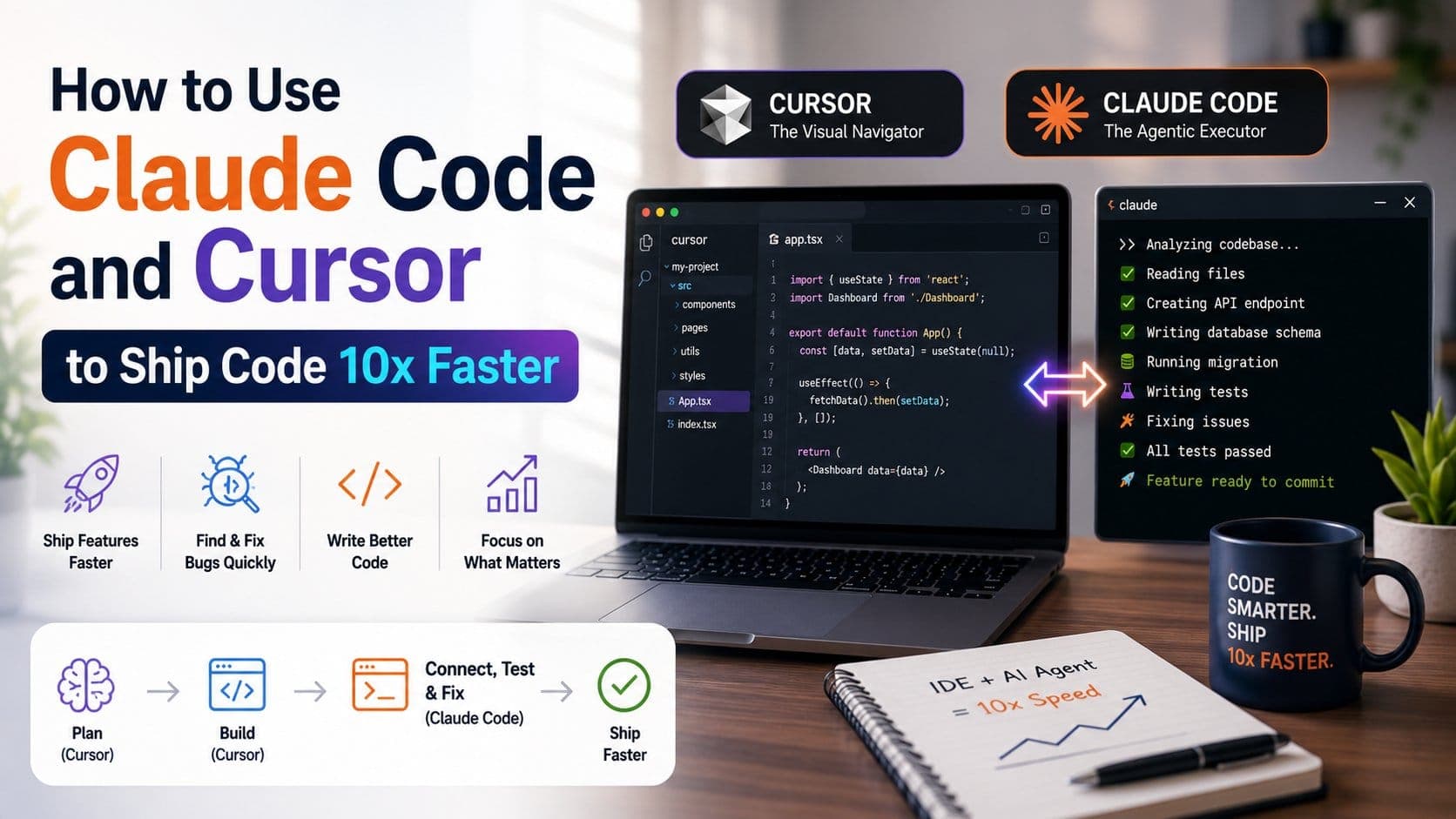
Coding is not what it was 10 years ago; it is much more than sitting at your computer for hours and hours to build one feature. Now, with AI tools like Claude Code and Cursor, you can code 10x faster than before. You can build new features, pull errors, and run code, all while only giving prompts and letting AI do all the work. With a dual-engine AI stack, you combine a highly visual, context-aware IDE with an autonomous, terminal-based agent. While Cursor acts as your navigator, you can use Claude as an executor, and with the help of these two AI tools, you can code much faster.
Here is how to use Claude Code and Cursor to Ship Code 10x Faster!
Before diving into the coding aspect of Claude, you need to first set up your digital workshop so that you can operate the tools with ease.
Cursor is a fork of VS Code, meaning all your extensions carry over seamlessly. To optimize it for speed:
Claude Code is a command-line interface (CLI) tool that runs directly inside your terminal. It doesn’t just suggest code; it interacts with your computer's file system, runs commands, and executes git workflows.
npm i -g @anthropic-ai/claude-code
If you want to work more efficiently, make sure that you are working in a split screen where the left side is the cursor and the right side is the external terminal, which is a running Claude Code.
Both tools come with their own capabilities; check when to use either of the tools to your advantage and code faster:
| Capability | Cursor (The Visual Navigator) | Claude Code (The Agentic Closer) |
| Best Used For | UI building, local file editing, codebase exploration, and quick code generation. | Complex multi-file refactoring, autonomous debugging, test execution, and Git automation. |
| Primary Interface | Visual IDE, Sidebar Chat, Inline Cmd + K, Composer (Cmd + I). | Terminal prompt / Interactive command-line interface. |
| Key Advantage | High spatial awareness lets you instantly see visual layouts and pinpoint file locations. | Deep agentic reasoning: can run commands, read error logs, and loop until a problem is solved. |
Now, let us walk through the exact steps that you need to take to build a feature 10x faster than you normally would without the help of an AI tool like Claude:
You need to open your Cursor Chat and get context from your existing layout. You can give up the prompt to extract information and instead request that it plant a new feature that matches the project's current design.
Open Cursor Composer (Cmd + I) to build the user interface. For the prompt, you can ask the tool to create the feature by detailing its exact function and how you want it to work. You can then review the visual output in your local browser environment.
Now, pivot to your terminal on the right side of your screen where Claude Code is active. Let’s connect this front-end to your database or payment API (like Stripe). After an appropriate prompt, Claude Code will autonomously create the database file, write the server code, run the migration script, and wire up the frontend fetch requests.
Don't write the tests manually. Let the agent handle validation.
If you want to code faster, then check out these pro tips that will help you go at it at the maximum speed possible:
To smoothly run your code and build your feature much faster, there are a handful of mistakes that you need to avoid at all costs:
With the help of Cursor and Claude Code, you can cut your manual work in half, and your role changes dramatically. Treat these AI tools as junior developers and do not forget to review all the code and features that they come up with.